
A PDF is the safest way to share a document — but it’s often the worst format to work with one. The moment you need to edit a contract, pull numbers into a spreadsheet, or drop a page into a slide deck, you need a converter that turns that locked-down file into something editable again.
This guide breaks down every major PDF conversion — PDF to Word, PDF to Excel, PDF to JPG, PDF to PPT, and the reverse conversions back into PDF — so you know exactly which one to reach for and why.
What Is a PDF Converter?
A PDF converter is a tool that changes a PDF file into another file format (like DOCX, XLSX, or JPG), or turns another format into a PDF. Because a PDF locks in layout, fonts, and images, converting it lets you unlock that content for editing, data extraction, or reformatting — without retyping anything.
Online converters do this directly in your browser: no software to install, no plugins, and in most cases your file is processed and deleted automatically once the conversion is done.
Convert PDF to Word (DOC / DOCX)
This is the single most common PDF conversion, and for good reason: it’s the fastest way to make a static PDF fully editable again in Microsoft Word or Google Docs.
Best for: resumes, contracts, reports, and any document where you need to edit the actual text.
What to expect: a good converter preserves paragraph structure, fonts, and basic formatting. Complex layouts (multi-column pages, scanned documents) may need manual cleanup — for scanned files, look for a converter with built-in OCR (optical character recognition).
Convert PDF to Excel (XLS / XLSX)
If your PDF contains tables — invoices, financial statements, price lists — converting to Excel extracts that data into rows and columns you can sort, filter, and calculate with, instead of retyping it by hand.
Best for: invoices, bank statements, data reports, price sheets.
Tip: conversion accuracy depends heavily on how clean the table borders are in the original file. Well-structured tables convert almost perfectly; PDFs with merged cells or inconsistent spacing may need a quick manual review after export.
Convert PDF to JPG or PNG
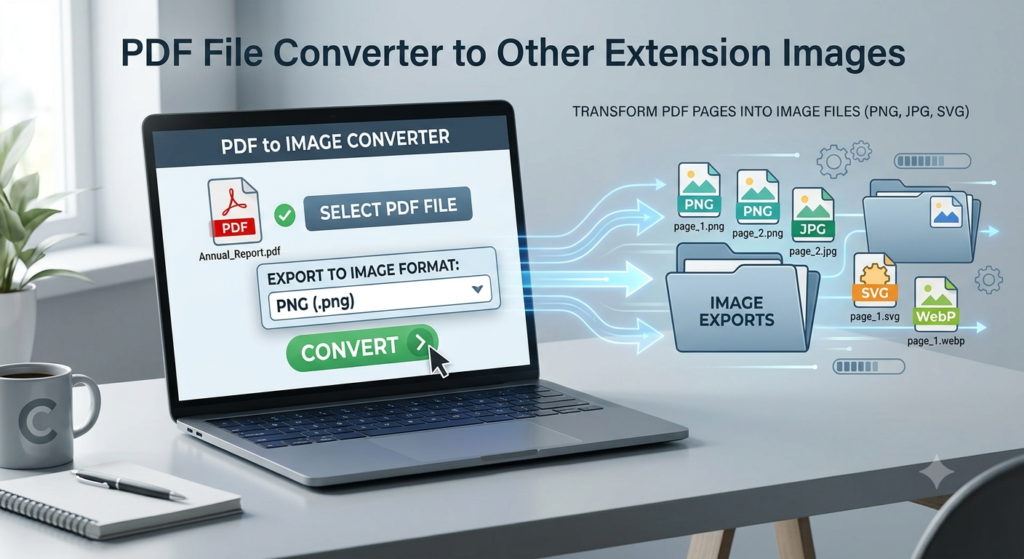
This conversion turns each page of a PDF into a standalone image file. It’s the go-to choice when you need to:
- Share a page on social media
- Insert a document snippet into a presentation or website
- Preview a page without opening a PDF reader
PNG is the better choice when you need a transparent background or sharp text, like a scanned signature. JPG is smaller and better suited to photo-heavy pages.
Convert PDF to PowerPoint (PPT / PPTX)
This conversion turns each page into an editable slide, keeping images and text boxes intact. It’s especially useful when you’ve received a PDF export of a deck and need to edit it, or when you want to repurpose a report into a presentation format.
Convert PDF to Text or HTML
For the simplest possible extraction — just the raw words, no formatting — converting to plain text strips out everything but the content itself. This is useful for feeding text into another app, searching large documents, or copying content without formatting issues.
Converting to HTML goes a step further, preserving basic structure so the content can be published or embedded on a webpage.
Converting Files Into PDF
Conversion works both ways. These are the most common conversions back into PDF:
- Word to PDF — lock a finished document so formatting can’t shift between devices
- Excel to PDF — share a spreadsheet as a clean, non-editable report
- JPG or PNG to PDF — combine multiple images into a single shareable file, ideal for scanned receipts or ID photos
- PowerPoint to PDF — flatten a slide deck for printing or sharing outside PowerPoint
Converting to PDF is the right move any time you want a document that looks identical on every device and can’t be easily edited by the recipient.
Frequently Asked Questions
Is it safe to convert PDFs online? Reputable converters process files over an encrypted connection and delete them from the server shortly after conversion. Avoid tools that don’t state a clear deletion policy, especially for sensitive documents like contracts or ID scans.
Why does my converted Word file look different from the original? A PDF doesn’t store a document the same way Word does — it stores a fixed visual layout. Converters reconstruct that layout as editable text, so complex designs like columns or unusual fonts may shift slightly. Simple, single-column documents convert almost exactly.
Can I convert a scanned PDF? Yes, but only if the converter includes OCR. Without it, a scanned page is just an image, and the output will be an image too, not editable text.
Is a free converter good enough, or do I need paid software? For occasional conversions, a free online converter is usually enough. Paid desktop software is worth it if you’re converting large volumes of files daily or need advanced features like batch OCR and password-protected file handling.