
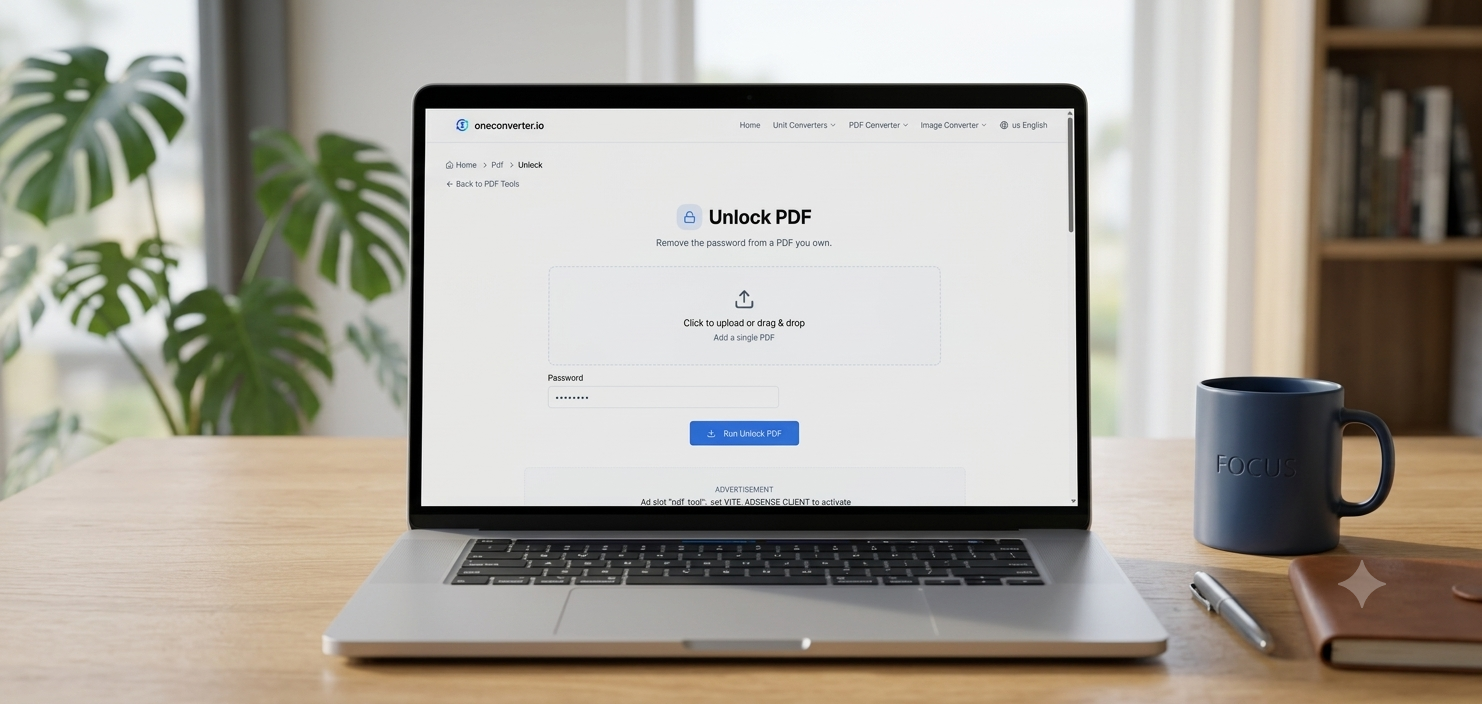
Password-protected PDFs are useful for sending sensitive files, but re-entering that password every single time you open your own document gets old fast. OneConverter’s PDF password remover strips the password for documents you own or have permission to unlock.
In short: Enter the current password once, get an unlocked copy back — only for files you’re authorized to open.
When this is actually useful
Common legitimate cases: a bank or utility statement you’ll reopen repeatedly, a document you password-protected yourself and no longer need locked, or a file a colleague sent with a password they’ve already shared with you.
Step-by-step
- Open the PDF Password Remover tool on OneConverter.
- Upload the protected PDF.
- Enter the current password to unlock it.
- Download the password-free version.
Remove a PDF password on OneConverter.io →
Important
Only remove a password from a document you own or have explicit permission to unlock — this tool requires the existing password and isn’t meant for bypassing protection on files that aren’t yours.